Some WordPress sites reach a point where the content model no longer fits the organization's needs. Custom content types, custom entities, and custom fields become necessary to represent internal data precisely, and Drupal supports all three, shaping that data with full flexibility.
Other sites reach that point because of AI. Drupal has built a strong AI ecosystem over recent years, enabling integrations of every needed type: content creation, accessibility checks, RAGs, among others. These are the two situations behind most WordPress-to-Drupal migrations: an architecture the site has outgrown, or an AI integration WordPress cannot support natively.
The challenge of migrating WordPress content to Drupal
The core challenge in a WordPress-to-Drupal migration is migrating the content itself. WordPress sites may host thousands of pieces of content that need to be moved to the Drupal site.
A full migration project runs through several phases: redesigning the site if needed, building the new architecture, and creating a Drupal node for every WordPress post or page. Creating the content is where the real work concentrates, since every image, every user, and every translation has to make it across, on top of adapting content to a different format defined by the new architecture.
A manual content migration is not viable due to its high costs and risks. Handled by hand, this work is prone to human error. A single error is easy to fix, but a systematic error, repeated across thousands of pieces of content, can cost more time to fix than automating the whole migration would have taken.
To perform automatic migrations, Drupal has its own migrate ecosystem. Through the Migrate API, it is possible to design and execute complete content migrations. Metadrop has contributed a module specialized in WordPress migrations: WordPress Migrate SQL.
The module migrates all the content and also allows creating customized migrations. Its base configuration provides a ready-to-use migration of all WordPress posts as Drupal articles, and also imports users, terms, and files. A detailed tutorial is available in the module's documentation.
How WordPress Migrate SQL reads and imports your WordPress data
The module reads all content directly from the WordPress database, so Drupal needs to be configured to connect to that database first. It works through Drupal's Migrate API, reading each WordPress table: wp_posts, wp_terms, wp_attachments, wp_users, and wp_terms_relationships. It understands the WordPress architecture to migrate the site, and it can read these tables even when they were created with a different WordPress table prefix.
This direct database connection is what sets the approach apart from the WordPress XML export. Instead of working from a fixed export file, the module gathers all the content, filters only what's needed, and can even pull extra data provided by plugins, such as translations. WordPress Migrate covers similar ground but does full content migration based on the WordPress WXR export format instead.
Handling every possible WordPress use case inside one module would be too hard, so it focuses on gathering what WordPress core provides by default. Because it connects to the database directly, it can be extended to gather any plugin-specific content a site needs.
That extensibility is what splits the module into two ways to migrate: enabling the "WordPress Migrate SQL - Basic" submodule, or generating a custom module. The basic path requires no custom code and imports WordPress posts as Drupal articles out of the box. The custom path scaffolds a template that can be extended to tackle site-specific customizations.
Those customizations are typically needed for legacy databases with years of accumulated content: broken links, custom markup that doesn't fit the new site, translation plugins like the WordPress Multilingual Plugin, or shortcodes that need processing. Both paths share the same setup and the same execution, launching the top-level posts migration with --execute-dependencies so users, terms, and attachments run first in the right order.
Enabling and configuring the module
Before enabling the module, it is needed to configure the WordPress database must be reachable from the Drupal server with at least SELECT privileges.
Additional to configuring the database, it is needed to install the drupal/migrate_tools module to execute the migrations. It is internally used by the 'WordPress Migrate SQL - Basic' submodule to perform the migration via UI, and it is the standard to run custom migrations.
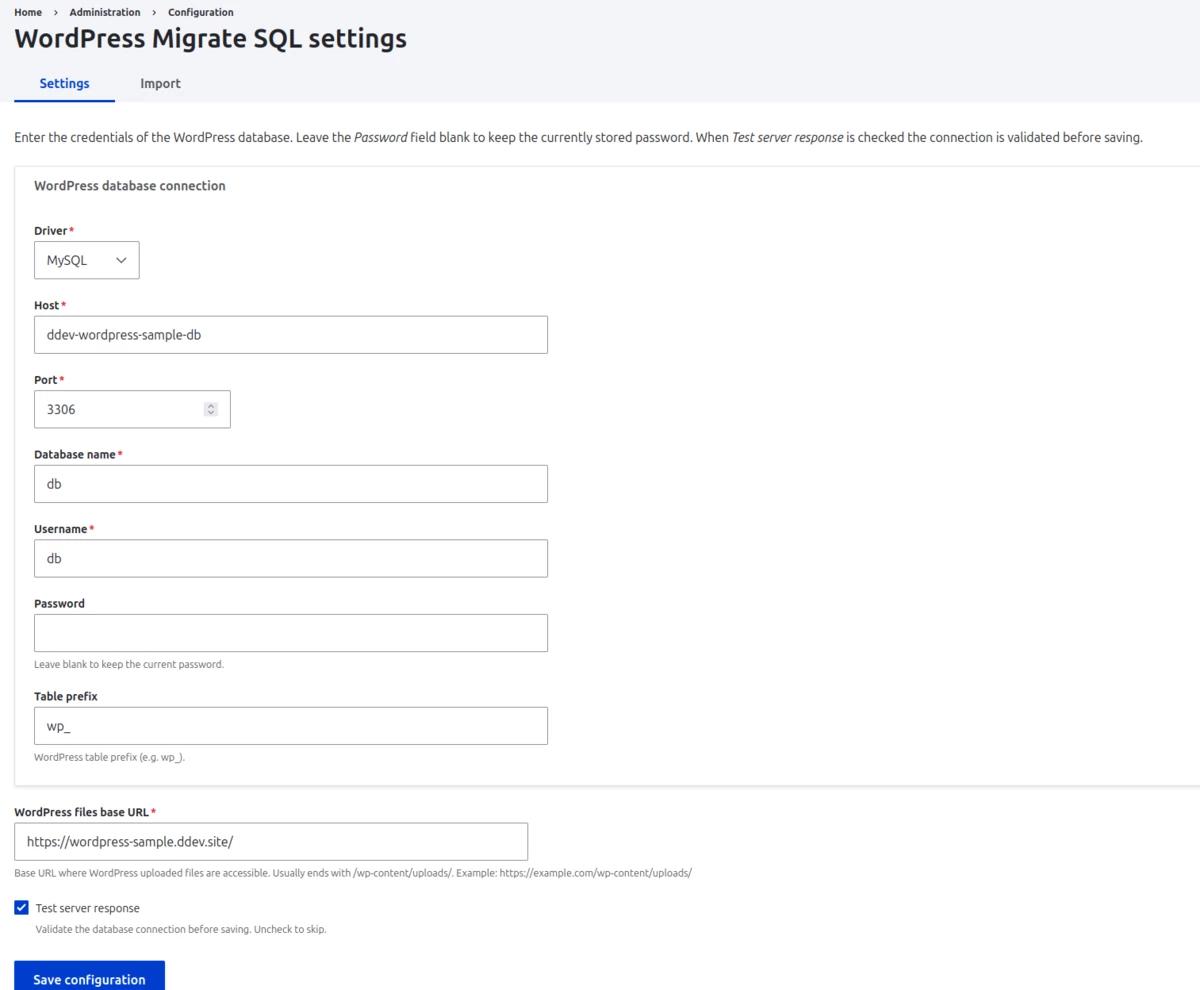
The first step is installing and enabling the base module, which both migration methods will use. Once enabled, configure the WordPress database connection at Configuration → System → WordPress Migrate SQL, filling in the database credentials and the files base URL. This connects Drupal to the WordPress database regardless of which path comes next. This is what the configuration form looks like:
After configuring the credentials, you can decide to either make a basic migration, or a fully customized one.
Basic migration out of the box
Enabling "WordPress Migrate SQL - Basic" adds an import screen at Configuration → System → WordPress Migrate SQL → Import.
The import page will look like this:
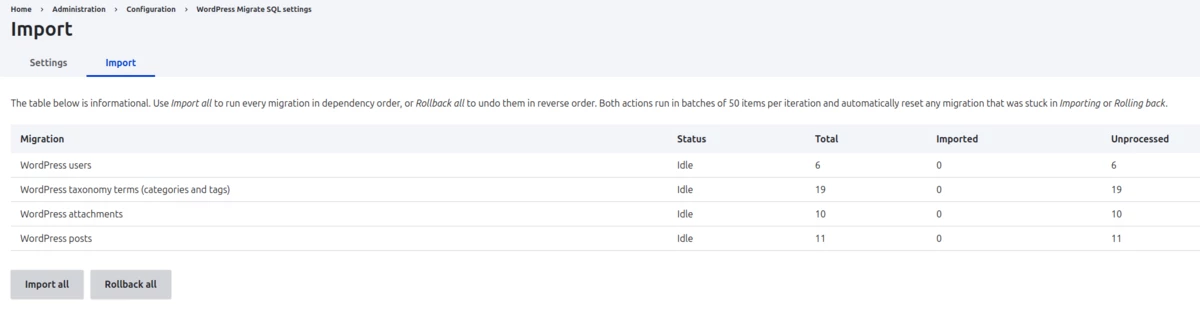
This page allows having a quick glance of how many content will be migrated. After pressing import, all the content will be migrated, showing a progress bar during the process. After the process finished, the users, categories, images, and posts will be migrated. There is also a rollback operation available which undoes everything in the case something looks wrong.
Custom module
The custom path builds on that same configuration and runs drush generate wordpress-migration instead. The command asks for the module name, machine name, target node bundle, image field, text format, and the categories/tags vocabularies and fields, then generates four migrations (users, terms, attachments, posts) plus supporting config files and a README, ready to edit further. Running the command looks like this:
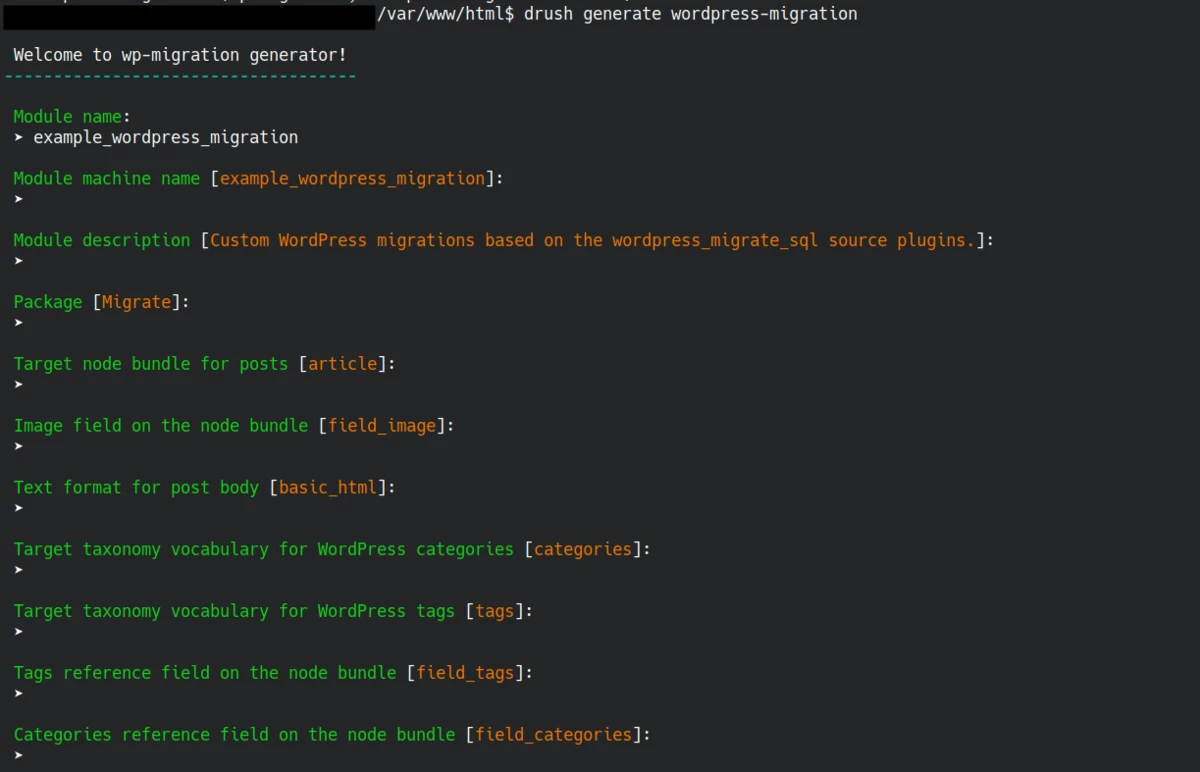
After creating the module through the drush generate command, it will generate a custom module like this:
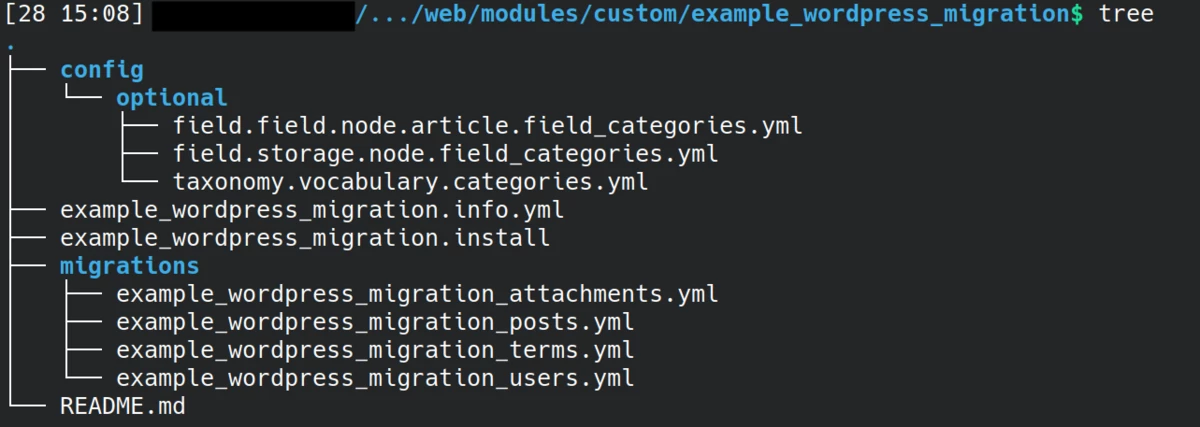
It contains:
- Configuration: if it does not exist yet, it adds the category field and vocabulary to the article.
- Migrations: This includes the initial four migrations for posts, users, terms, and attachments.
After enabling the module, you will have the ready to execute migrations:

At this point, the custom module does not have any difference than the basic module except the different migrations names, and the fact that we need to execute commands in the server. Its mayor advantage is now it is possible to modify the migration code so:
- Is possible adding more migrations to the migration folder if needed. For example, by default only posts, but perhaps is needed to migrate also custom pages. In that case, this is solved by add a new migration file, based on the original posts migration.
- It is possible to modify the base four migrations in the case it is needed to:
- Extracting and set specific WordPress modules.
- Process some values coming from WordPress. For example, content coming from the post bodies:
- Malformed HTML.
- HTML with a markup that does not get correctly styled in the module. For example: Youtube videos that are added in iframes but in Drupal are needed to import by adding specific Drupal specific markup for CKeditor.
- Broken URLs.
- It is possible to add Migrate process plugins that allow to perform any custom source field processing for the migration.
Successful use cases
The module has been used to migrate WordPress sites for NGOs and other organizations, with these real migrations averaging 500 to 2000 posts per site.
Across these projects, the process stays consistent: enable WordPress Migrate SQL, prepare a custom base migration, and use it as a starting point. This avoids rethinking how to read WordPress's base tables on every project, leaving the work focused on each project's specific business needs.
Conclusion
Migrating a WordPress site to Drupal manually is slow and error-prone at any real scale, requiring it to be automated. WordPress Migrate SQL automates that migration directly from the WordPress database, covering posts, users, terms, and files.
Simple WordPress sites can be migrated using the basic import. Sites with customized markup, translations, or contrib-custom plugins that are not possible to be directly migrated can start from the scaffolded module and adjust the migrations they need.
Check out the module page.